Build the moderation pipeline, step by step
Each screenshot below is the real block configuration from the live flow.
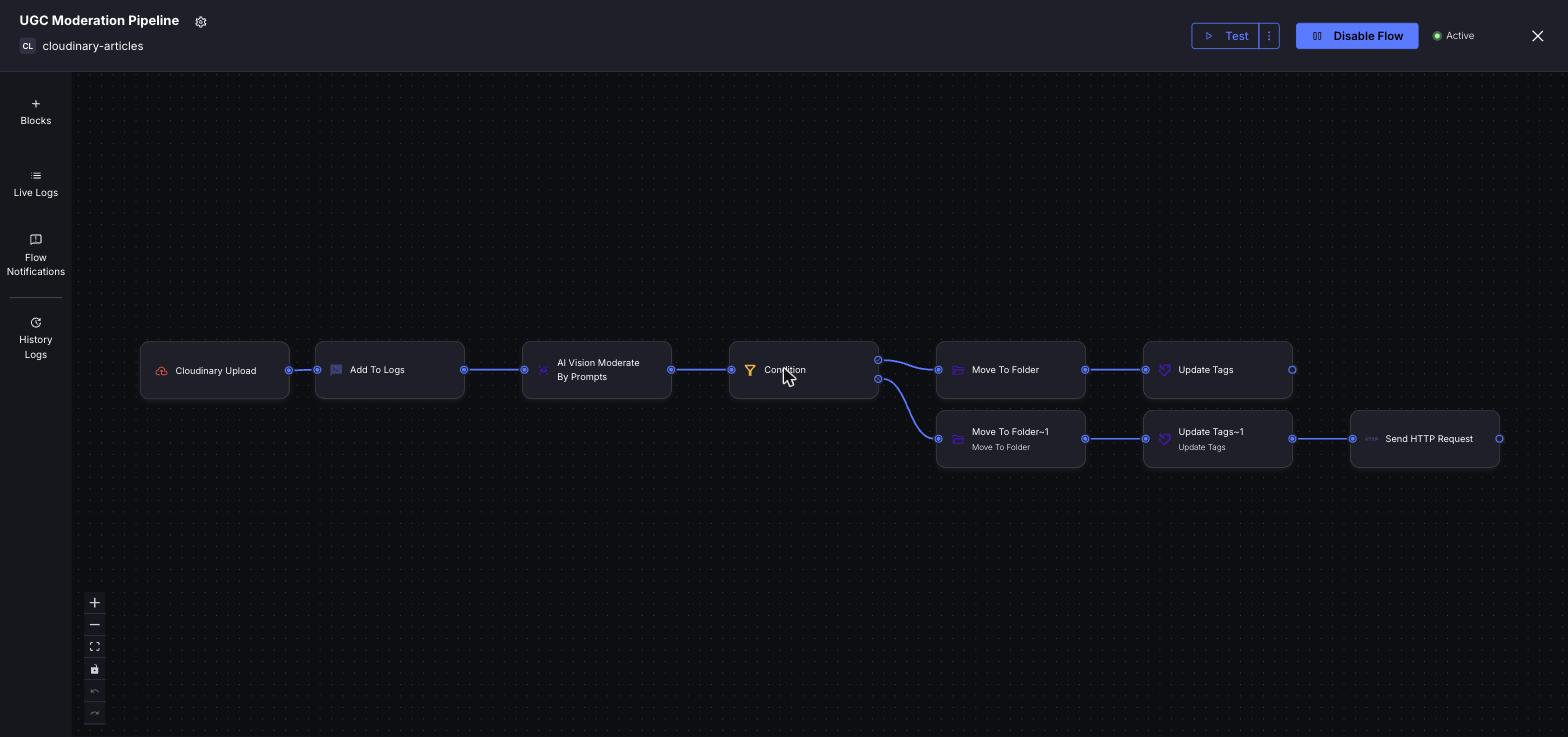
1. The finished PowerFlow at a glance
A PowerFlow lets you branch, unlike a linear EasyFlow. Trigger → log → AI moderation → a Condition that splits into a rejected path and an approved path.
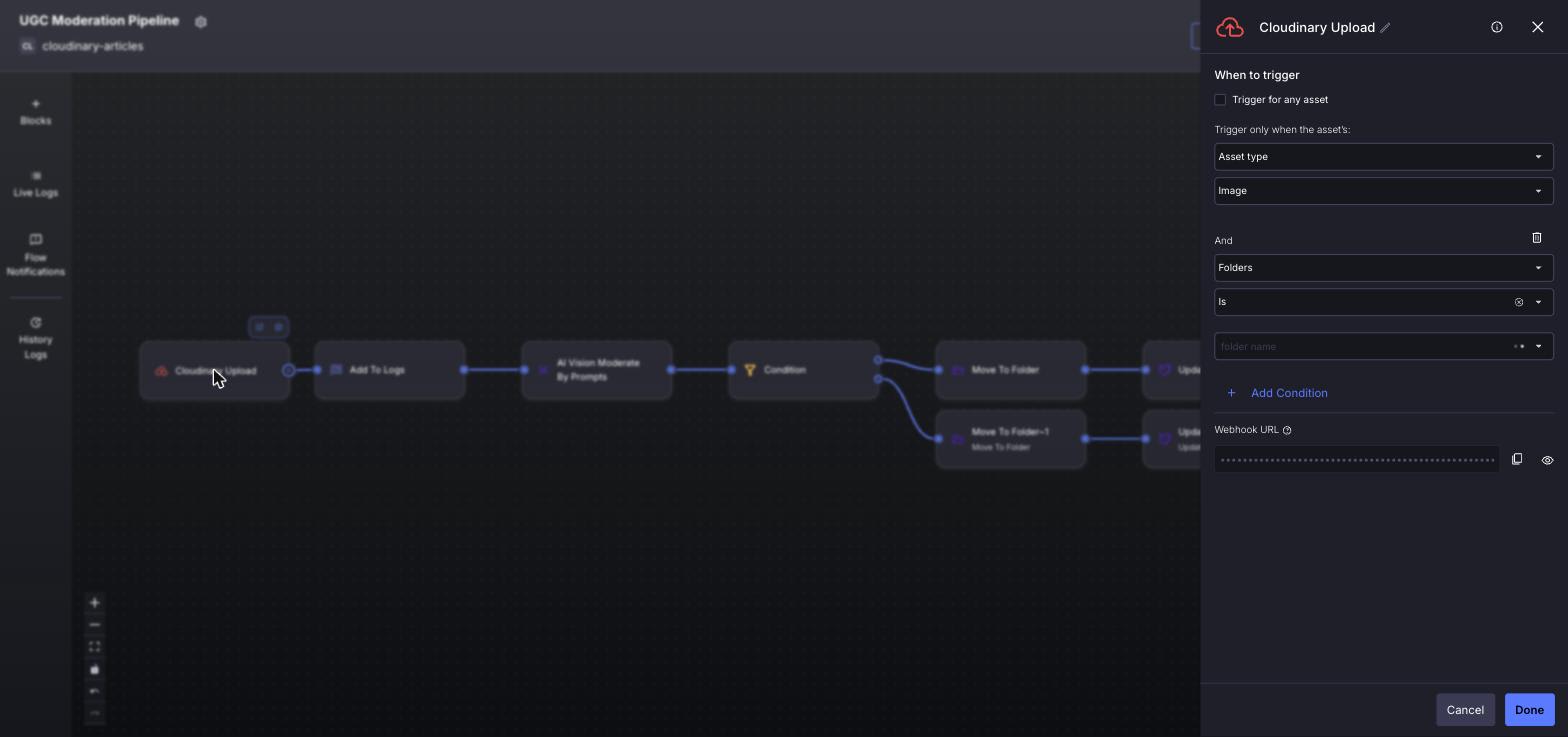
2. Upload trigger scoped to ugc/
The Cloudinary Upload trigger fires on every new image. Add a condition Folders / Is / ugc so only user uploads enter the pipeline.
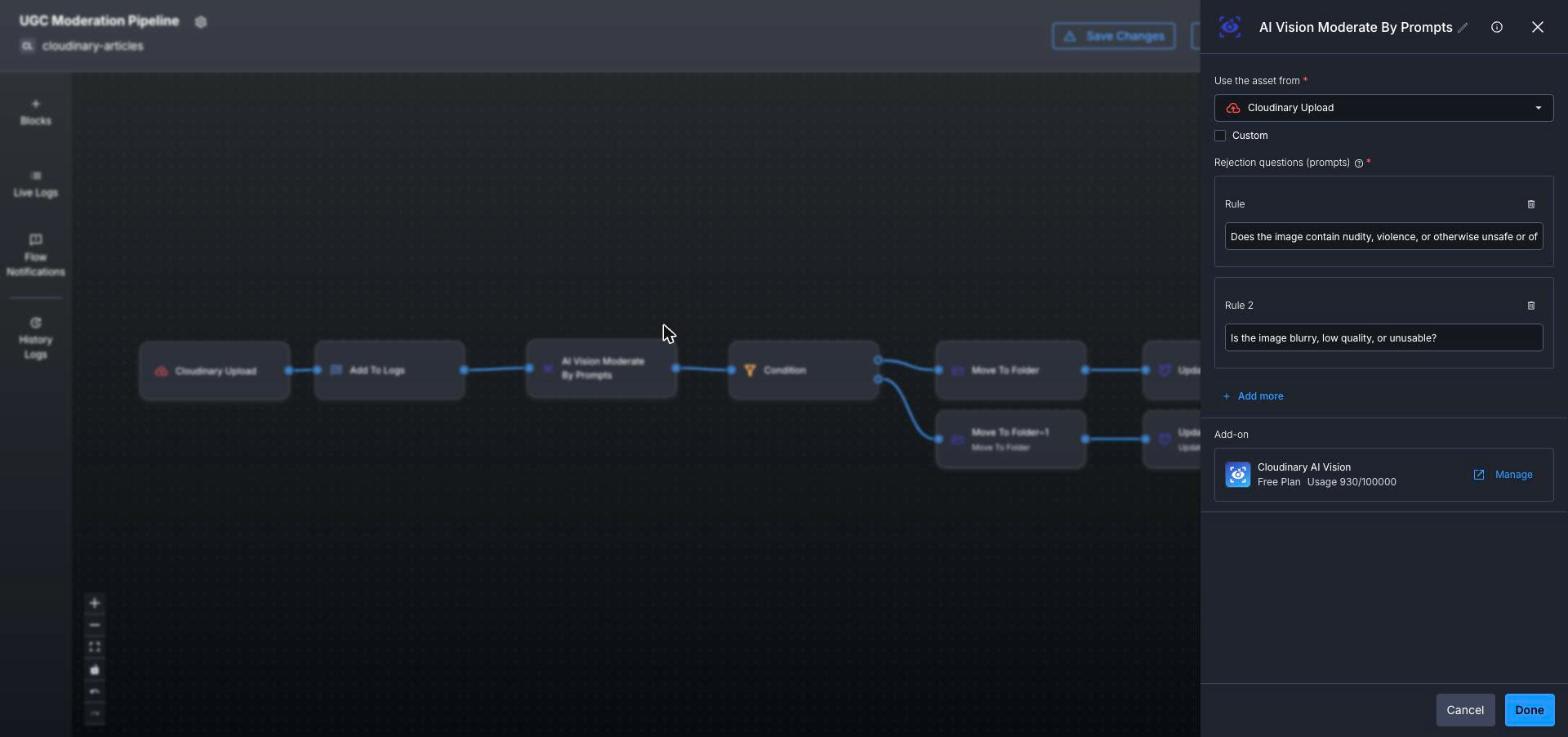
3. AI Vision Moderate By Prompts
Ask plain-language rejection questions, e.g. unsafe content and low quality. Each returns a boolean; 'Any rejected' aggregates them.
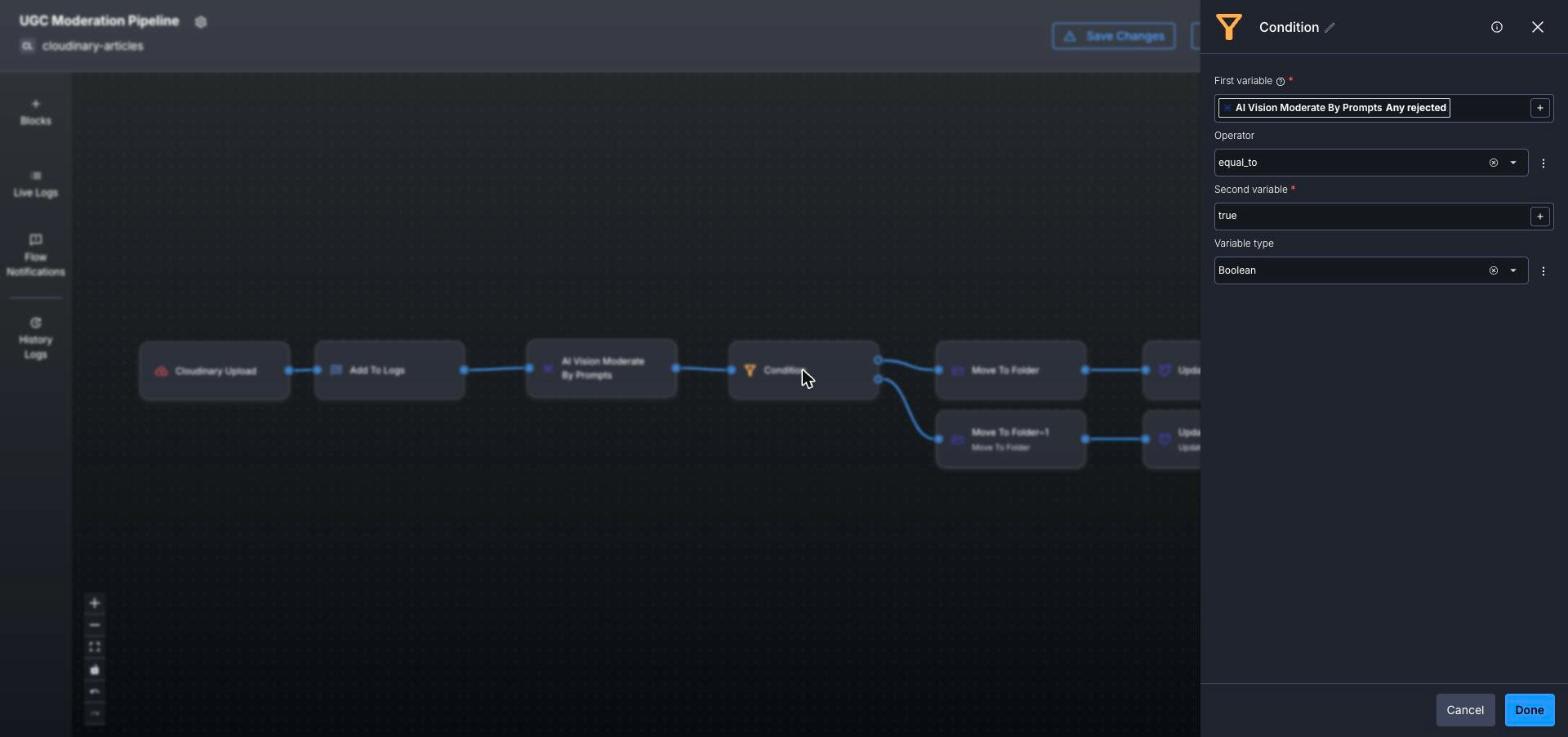
4. Branch on Any rejected == true
A Boolean Condition routes the asset: true → quarantine path (top), false → published path (bottom).
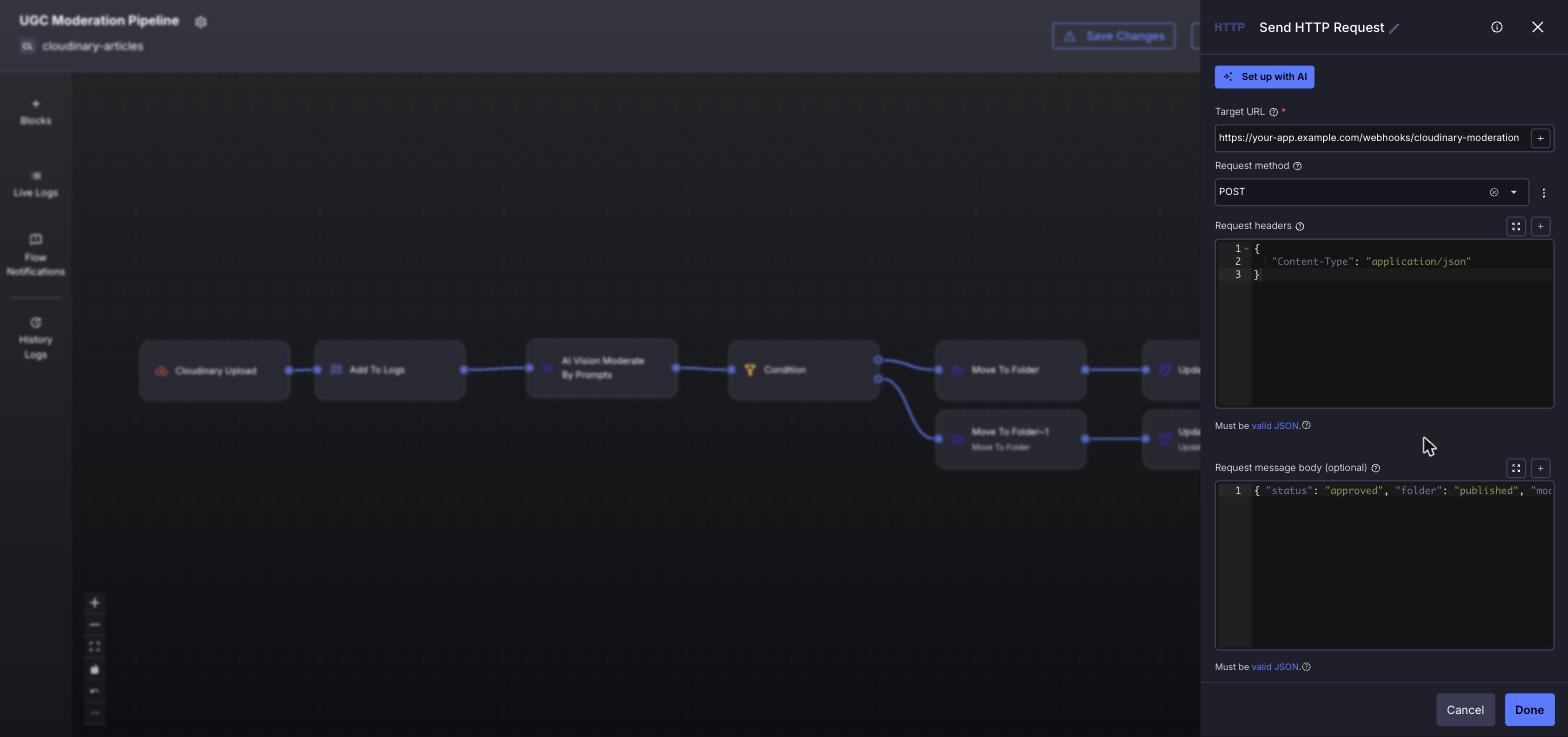
5. Notify your app via webhook
On the approved path, Send HTTP Request POSTs a JSON payload to your endpoint. Swap the placeholder URL for your deployed route.
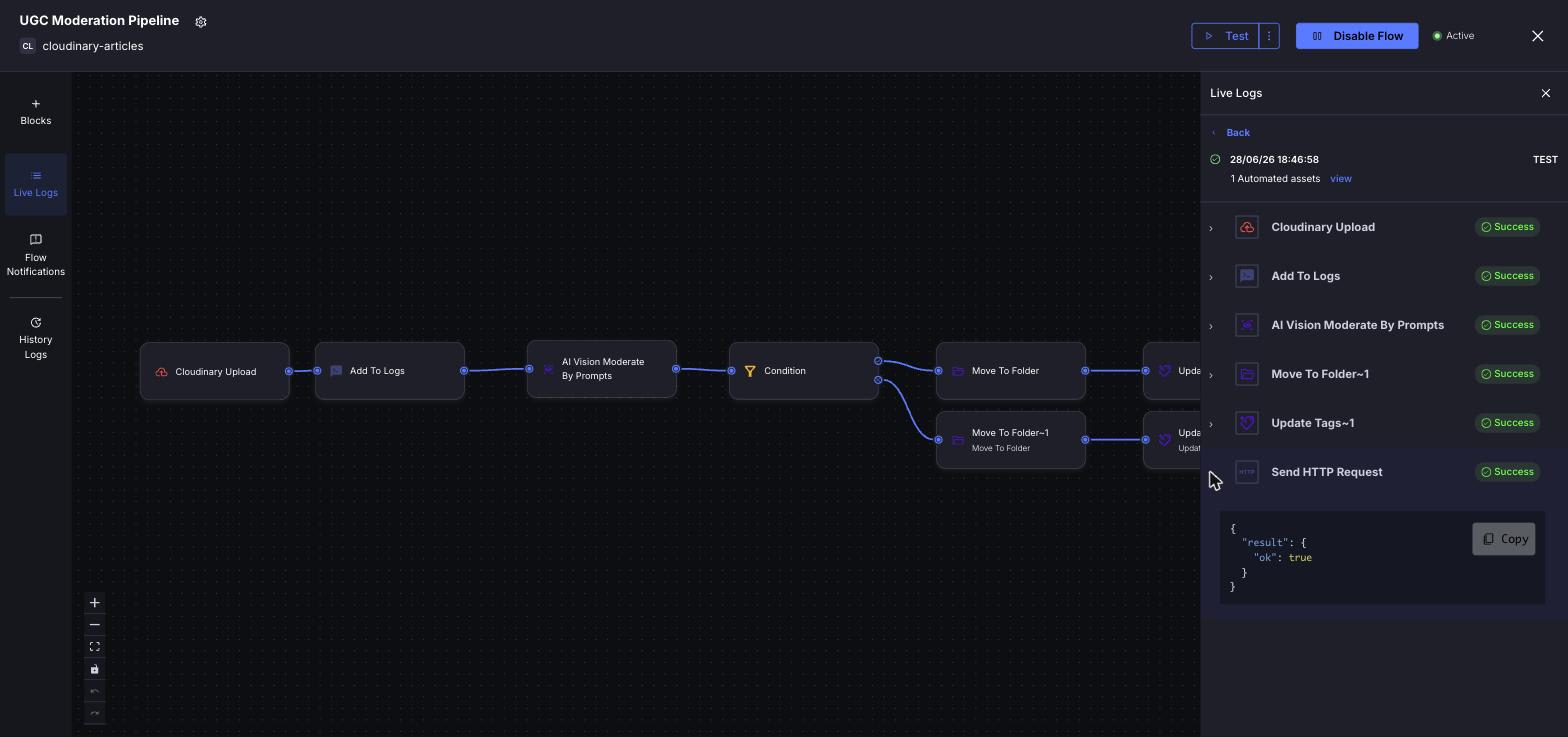
6. Verify with a test run
Use Test and read Live Logs. Every block reports Success; the webhook errors only until you point it at a live URL.